
Banyan Application Instructions
For instructions, please see our Video Tutorial Playlist.
Step 1: Access the GEM$ Quick Start Guide
Step 2: Select the appropriate application on the webpage
- If you are the primary ratepayer on your utility account, please select the GEM$ Main Application if you are a homeowner or renter. Only the person listed in the upper lefthand corner of the utility bill should complete the GEM$ Main Application.
- If you are a landlord and your tenant is interested in applying, please select the Landlord application
Note: If you are an additional utility accountholder or additional property owner you must complete the Additional Application. A link to the Additional Application will be provided through a comment left by HGIA on the GEM$ Main Application.
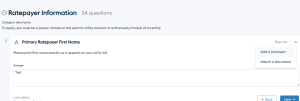
Step 3: Carefully complete the application to ensure your answers are complete. You will not be able to change your answers after clicking “Finish” and submitting. If you make any errors, please add a comment to a particular question by clicking on the three dots on the upper right of the question and selecting “Add a comment”. HGIA staff will review your comment, and update your application if necessary.
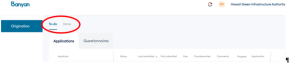
Step 4: After submitting your application, your application will no longer appear in the “To-do” page of your log-in screen, but show up as “In Review” under the “Done” page of your login screen. To review your submission, click on the appropriate application in the “Done” tab.
Step 5: HGIA will review your application for accuracy and completeness. If HGIA identifies any issues or missing information, you will receive an email from “Banyan System” notifying you that your application has been assigned a “Resubmission Request”. When you reenter your application, certain questions will be flagged for resubmission: to view these, click “Expand Revisions” at the top of the page, and any questions requiring revision will open, and be flagged with a comment. These comments have specific instructions on how to fix your answer. When you update all the questions flagged for resubmission, you will be able to hit “Finish” at the bottom of the screen and resubmit.
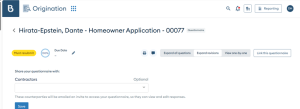
Step 6: After resubmitting, HGIA will review your application again. HGIA will either request another resubmission, or mark the application as complete. In either case, you will receive an email from “Banyan System” notifying you of the updated application status.